Feature Preview: Enhanced Portfolios are currently available in Feature Preview. This article covers the updated Portfolio functionality. For information about the current production version of Portfolios click Portfolios
Portfolios
Portfolios allow you to create and manage groups of symbols for quick access throughout Symbolik. Create your own Custom Portfolios or use predefined System Portfolios to quickly access commonly followed groups of securities.
Click the Portfolio icon on the side toolbar to open Portfolios.
Custom and System Portfolios
The Portfolio panel includes two types of Portfolios:
Custom Portfolios are Portfolios you create and manage. You can add or remove symbols, organize them in a preferred order, and customize how Portfolio information is displayed.
System Portfolios are predefined Portfolios provided by Symbolik. Select the System tab to browse the available System Portfolios.
Select any Portfolio to open it in Portfolio View.
Creating and Editing a Custom Portfolio
Creating a Custom Portfolio
From the Custom tab, click the Add icon to create a new Portfolio.
Enter a name for the Portfolio and begin adding symbols. When finished, select Save to create the Portfolio.
Adding Symbols
Begin typing a symbol or security name in the Add symbol field and select the desired security from the search results. Press Enter to add the selected symbol.
Tip: Adding several symbols? Press Shift + Enter to add the selected symbol and immediately begin entering another.
When applicable, symbols are added using the default exchange configured in your System Settings.
Additional Portfolio Options
While creating or editing a Portfolio, select the Ellipses Icon to access additional options for adding and managing Portfolio content.
Add New Symbols to Top / Bottom
Choose Add New Symbols to Top or Add New Symbols to Bottom to control where newly added securities are placed in the Portfolio.
Once selected, new symbols will be added to the corresponding end of the Portfolio as you build or edit the list.
Insert Portfolio
Select Insert Portfolio to add the symbols from an existing Portfolio to the Portfolio you are creating or editing.
Choose the Portfolio you want to insert and confirm your selection. The symbols from the selected Portfolio are added to the current Portfolio, where they can be reordered, removed, or otherwise edited.
Note: Inserting a Portfolio adds its symbols to the current Portfolio. The two Portfolios are not linked, so future changes to the original Portfolio will not automatically update the Portfolio where its symbols were inserted.
Paste Symbols
Select Paste Symbols to quickly add a list of symbols to the Portfolio.
Paste the symbols into the Paste symbols window. See the ? icon for pasting format. Click the Import button
This is useful when you already have a list of symbols and want to add them without searching for each security individually.
Rename Portfolio
Select Rename Portfolio to change the name of the Custom Portfolio.
Removing and Reordering Symbols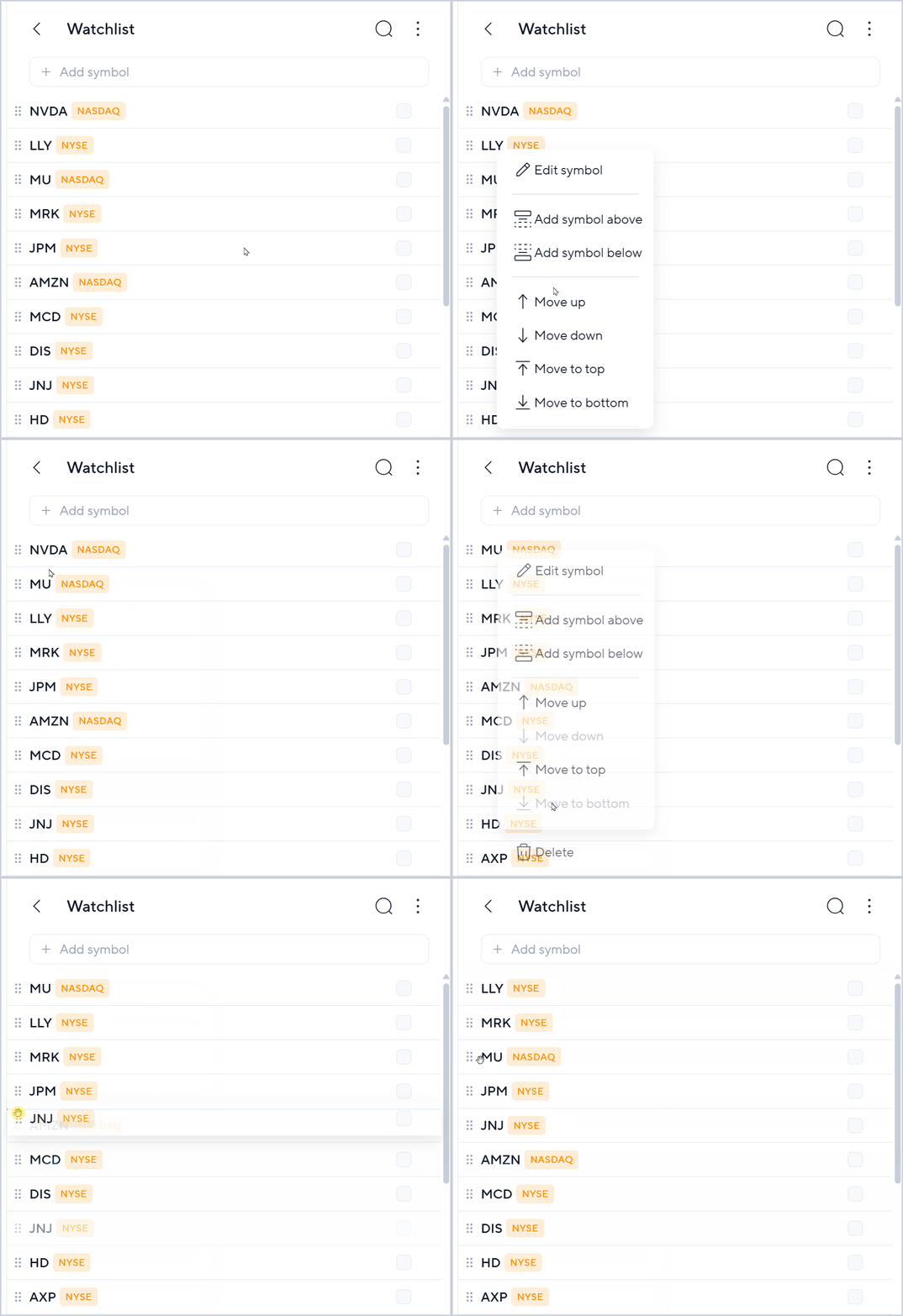
While creating or editing a Portfolio, symbols can be removed or manually reordered as needed.
Drag a symbol using its handle to move it to a different position in the list. The order saved in Edit mode becomes the Portfolio's default manual order.
Right-Click Options in Edit Mode
Right-click a symbol while in Edit mode to Edit Symbol, Add Symbol, Move Symbol Up, Down, Top or Bottom or Delete Symbol from the Portfolio.
When finished making changes, select Save.
Portfolio Settings
Portfolio Settings control how Portfolio information is displayed and provide options for customizing the appearance and behavior of your Portfolios.
Open Portfolio Settings from Ellipses menu to customize the current Portfolio.
Display Style
Choose how security information is displayed in the Portfolio:
- Symbol - Displays the Symbol and Exchange.
- Full - Displays the Symbol, Security Name, and Exchange on a single row.
- Stacked - Displays the Symbol, Security Name, and Exchange in a two-row layout for each security.
Appearance
Horizontal Dividers
Use Horizontal Dividers to visually separate groups of securities within a Portfolio.
Crosswalks
Use Crosswalks to help visually distinguish rows within a Portfolio.
Crosswalk Color allows you to choose the color and opacity used to display Crosswalks.
Auto-Play Speed
Use Auto-Play Speed to set the default speed used when moving automatically through Portfolio symbols with Auto Play.
Saving Portfolio Settings
Select Save to apply your changes to the current Portfolio.
Select Save and Apply to All Portfolios to apply the settings across your Portfolios and establish those settings as the default Portfolio settings.
Setting Portfolio Defaults in System Settings
Portfolio defaults can also be configured through Symbolik's System Settings.
Click the Profile icon in the upper-right corner of Symbolik and select System Settings. Select Portfolio to view or change the default Portfolio settings.
Changes made to the Portfolio defaults in System Settings apply across your Portfolios.
Viewing and Using a Portfolio
Select a Portfolio to open it in Portfolio View.
Select any symbol in the Portfolio to load that security into the active chart. This allows you to quickly move through a group of securities while keeping the Portfolio open alongside your chart.
Symbol, Full, and Stacked Views
Portfolios can be displayed in Symbol, Full, or Stacked view based on the Display Style selected in Portfolio Settings.
Symbol displays the Symbol and Exchange. Full displays the Symbol, Security Name, and Exchange on a single row. Stacked displays the same information in a two-row layout for each security.
Sorting a Portfolio
Portfolio information can be sorted while viewing a Portfolio, allowing you to temporarily reorganize the list based on the information you want to review.
The manual order established in Edit mode remains the Portfolio's default manual order.
Auto Play
Auto Play automatically moves through the securities in a Portfolio, loading each security into the active chart.
Start Auto Play from the Portfolio controls. Symbolik will advance through the Portfolio sequentially. Use the available Auto Play controls to adjust the playback speed, move through the Portfolio, or stop Auto Play.